This post is basic tutorial of how you can create your own command line tool. I will try to explain things step by step so things are easily understood.
When I first saw Laravel framework, I really liked its Artisan console tool, it seemed like magic providing us with a bunch of stuff we could do with it such as creating MVC triads, running migrations and a lot more. Although similar concepts already existed in frameworks like CakePHP but Laravel did good job of making us realize how useful a console app can be and that we can use it beyond basic CRUD operations.
To create a console app, we can use Symfony's console component and in fact Laravel also uses the same. We could also use Aura.Cli from AuraPHP but for this post, we will stick with one provided by Symfony.
Installing Symfony Console Component
The easiest way to install it is via composer. Create a new folder in your document root named consoleApp and inside it create composer.json file with these contents:
{
    "require" :{
        "symfony/console": "2.6.7"
    }
}
and then run composer install command in newly created folder from your cli application. After some while you should have vendor directory created.
Creating Our First Command
A command is something that performs an specific task. For example, in Laravel's artisan tool, you can type this:
> php artisan app:name yourAppName
Here app:name is a command that can changes namespace of your Laravel application. Here is also breakdown of above line:
php - php executable (php.exe). This assumes you have already added php.exe in your PATH enviroment variable in your systemartisan - The name of the console applicationapp:name - The name of the command that will be runyourAppName is an argument to the app:name command
Create a Commands folder in root of application, this will contain all our commands for the console app we will be creating. Also create empty file called app (without extension) either by using editor of your choice or running this command via your cli in app root folder touch app. The folder structure should now look like this:
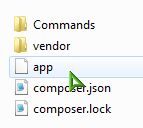
Open app app file in editor of your choice and paste this line in it:
#!/usr/bin/env php
This tells the system that is a php env file and should be run by php executable. You may need to apply execute permission on this file if you are on Linux.
Next, let's include our dependencies through composer's autoload feature, so add this line:
require __DIR__ . '/vendor/autoload.php';
This will automatically include our dependencies which in this case is Symfony Console Component.
By now app file should have these contents:
<?php
require __DIR__ . '/vendor/autoload.php';
Before we edit this file further, let's first create our command which will basically be a Greet command. Our commands will essentially be class files therefore inside Commands directory that we created earlier, create a file called GreetCommand.php.
The Symfony Console Component requires that we should extend it and provide at least two methods called configure() and execute(). As the names suggest, the configure() method can be used to configure our command such as what command will be called, what arguments and options it will accept and the execute() command will actually execute our command.
In GreetCommand.php file, paste in these contents:
<?php
use Symfony\Component\Console\Command\Command;
use Symfony\Component\Console\Input\InputArgument;
use Symfony\Component\Console\Input\InputInterface;
use Symfony\Component\Console\Input\InputOption;
use Symfony\Component\Console\Output\OutputInterface;
class GreetCommand extends Command
{
protected $commandName = 'app:greet';
protected $commandDescription = "Greets Someone";
protected $commandArgumentName = "name";
protected $commandArgumentDescription = "Who do you want to greet?";
protected $commandOptionName = "cap";
protected $commandOptionDescription = 'If set, it will greet in uppercase letters';
protected function configure()
{
$this
->setName($this->commandName)
->setDescription($this->commandDescription)
->addArgument(
$this->commandArgumentName,
InputArgument::OPTIONAL,
$this->commandArgumentDescription
)
->addOption(
$this->commandOptionName,
null,
InputOption::VALUE_NONE,
$this->commandOptionDescription
)
;
}
protected function execute(InputInterface $input, OutputInterface $output)
{
$name = $input->getArgument($this->commandArgumentName);
if ($name) {
$text = 'Hello '.$name;
} else {
$text = 'Hello';
}
if ($input->getOption($this->commandOptionName)) {
$text = strtoupper($text);
}
$output->writeln($text);
}
}
The code is pretty much self-explanatory:
$commandName is the name of our command$commandDescription is description/help text for our command$commandArgumentName is argument name of our command$commandOptionName is option name of our command. The difference between argument and option is that an option is optional one unlike argument and can be specified with --optionName.- Inside
configure() method, we can easily understand how we set command name, argument and options. - Inside
execute() method, we get argument and check to see if it is set. If set, we say Hello Name otherwise we simply say Hello. Then we check if option is provided and if so we upper case it and finally output the result.
Now finally let's tell Symfony Console Component to use our command we just created. Modify app file so it looks like this:
<?php
require __DIR__ . '/vendor/autoload.php';
use Symfony\Component\Console\Application;
$application = new Application();
$application->add(new GreetCommand());
$application->run();
Let's test our command. Open your cli app and point it to our app root and run this command:
> php app app:greet John
That should result in error that GreetCommand.php flle was not found. Let's tell composer to automatically include our commands from Commands folder. Edit composer.json file so it looks like this:
{
  "require": {
    "symfony/console": "2.6.7"
  },
  "autoload": {
    "classmap": ["Commands"]
  }
}
and then type composer dump -o from your cli app. Now run our command again:
> php app app:greet John
and you should see Hello John. Type:
> php app app:greet John --cap
and you should see HELLO JOHN.
Here we named our console file app but if you rename it to artisan and then run above commands replacing app with artisan, you will have your own artisan tool, funny enough :)
Of course, you can now add any commands you want to your new console app. You can even run composer or git commands through your new console app or may be some deployment/build scripts or even system commands. If you are using some MVC framework, you can use this tool to for example create your own way of creating controllers, entity classes, run your custom migrations, call methods from your controllers and more.
If you want to see how Laravel does it all, you can take a look inside this folder and see how those commands are created:
vendor/laravel/framework/src/Illuminate/Foundation/Console
I am currently working on a project powered by CodeIgniter (and it doesn't have built-in console app as you know) and I have created quite some commands that have really helped me speed up my development time where I do a host of different things via my console app.
Have fun with your artisan tool :)